I wanted to make sure that the wordfiles used by UltraEdit on my workstation were up to date.
I am sort of lazy sometimes and really get tired of copying them from the website and placing them in the folder.
As it turns out IDM Computer Solutions uses github to handle the storage of it's wordfiles for UltraEdit, this is great. On Linux, when you install UltraEdit the default wordfile directory is ~/.idm/uex/wordfile.
I went to the directory above the wordfile directory, ~/.idm/uex and removed the wordfile directory and then cloned the repository from IDM using the following command:
git clone https://github.com/IDMComputerSolutions/wordfiles.git.
Now, when I start up ultra edit it has all the syntax files available. The real bonus now is that all I have to do is do is go to the wordfiles directory and do a git pull, to get the latest wordfiles.
Saturday, March 5, 2016


Tuesday, January 26, 2016
My cscope and ctags setup
Along with my .vimrc setup, I typically use cscope and ctags to navigate around a tree of source code. I typically setup two bash scripts to separate searching from generation of the files. This way,
I can generate the search files for a large source tree only if I have to.
The first file I make is the update.sh script:
>------------------------------------ Start of Contents ------------------------------------<
#!/bin/bash
# Remove all existing files that we use to search
rm -rf *.files *.out tags
# Build all the tags
ctags -R --c++-kinds=+p --fields=+iaS --extra=+q ../.
# find all files for cscope to process
find ../. -name "*.c" -o -name "*.cpp" -o -name "*.s" -o -name "*.h" > cscope.files
# Generate lookup and reverse lookup databases
cscope -b -q -k

I can generate the search files for a large source tree only if I have to.
The first file I make is the update.sh script:
>------------------------------------ Start of Contents ------------------------------------<
#!/bin/bash
# Remove all existing files that we use to search
rm -rf *.files *.out tags
# Build all the tags
ctags -R --c++-kinds=+p --fields=+iaS --extra=+q ../.
# find all files for cscope to process
find ../. -name "*.c" -o -name "*.cpp" -o -name "*.s" -o -name "*.h" > cscope.files
# Generate lookup and reverse lookup databases
cscope -b -q -k
>------------------------------------ End of Contents ------------------------------------<
Then I make the search.sh script:
>------------------------------------ Start of Contents ------------------------------------<
#!/bin/bash
# Tell Cscope to use gvim ( this will allow multiple files to be open )
export EDITOR=gvim
# Search with the just built databases
cscope -d
>------------------------------------ End of Contents ------------------------------------<
I keep these scripts in their own directory in a source tree, and work from that directory.
The directory tree is set up like this:
These scripts are setup to go up one directory from cscope directory, and then recursively build a list of .c,.cpp,.s and .h files so that they can be used by cscope to build a lookup database file and a reverse lookup database file. This speeds up the searching on larger code bases (like the one I use at work).
Hopefully, this will help someone besides myself. Have fun.
Saturday, January 23, 2016
My vim / gvim config file
I finally took the time to recreate the .vimrc like I use to have a while ago. I am posting it here so I don't lose it again, maybe you will find some of it useful.
>------------------------------------ Start of Contents ------------------------------------<
" Set to automatically read when a file is changed from the outside
set autoread
" Always show current position
set ruler
" Configure backspace so it acts as it should act
set backspace=eol,start,indent
" Ignore case when searching
set ignorecase
" When searching try to be smart about cases
set smartcase
" highlight search
set hlsearch
" incremental search
set incsearch
" Don't redraw while executing macros
set lazyredraw
" Regex Magic
set magic
" Extra margin to the left
set foldcolumn=4
" Turn on folding
set foldmethod=syntax
" Enable syntax highlighting
syntax enable
" show partial commands
set showcmd
" display line numbers
set number
" Color Scheme
try
colorscheme desert
catch
endtry
set guifont=Hack\ 10
set background=dark
" utf8 encoding as en_US default
set encoding=utf8
" Unix file as the standard file type
set ffs=unix,dos,mac
" No backup etc
set nobackup
set nowb
set noswapfile
" Use spaces not tabs, and be smart about it.
" 1 tab = 4 spaces
set expandtab
set smarttab
set shiftwidth=4
set tabstop=4
" Use actual tabs for makefiles only!
autocmd Filetype make setlocal noexpandtab
" Auto, smart indent
set ai
set si
" Set Window Size
set lines=50 columns=132

>------------------------------------ Start of Contents ------------------------------------<
" Set to automatically read when a file is changed from the outside
set autoread
" Always show current position
set ruler
" Configure backspace so it acts as it should act
set backspace=eol,start,indent
" Ignore case when searching
set ignorecase
" When searching try to be smart about cases
set smartcase
" highlight search
set hlsearch
" incremental search
set incsearch
" Don't redraw while executing macros
set lazyredraw
" Regex Magic
set magic
" Extra margin to the left
set foldcolumn=4
" Turn on folding
set foldmethod=syntax
" Enable syntax highlighting
syntax enable
" show partial commands
set showcmd
" display line numbers
set number
" Color Scheme
try
colorscheme desert
catch
endtry
set guifont=Hack\ 10
set background=dark
" utf8 encoding as en_US default
set encoding=utf8
" Unix file as the standard file type
set ffs=unix,dos,mac
" No backup etc
set nobackup
set nowb
set noswapfile
" Use spaces not tabs, and be smart about it.
" 1 tab = 4 spaces
set expandtab
set smarttab
set shiftwidth=4
set tabstop=4
" Use actual tabs for makefiles only!
autocmd Filetype make setlocal noexpandtab
" Auto, smart indent
set ai
set si
" Set Window Size
set lines=50 columns=132
>------------------------------------ End of Contents ------------------------------------<
And a picture of what it looks like while viewing C files:

Sunday, October 4, 2015
MOS Development Start
This weekend I got a little bored, and decided to start up operating system development again. There is a video of MOS running at the end of the post;
I know, it's been a while. Firmware development is pretty similar anyway (they both use cross-compilers and have almost nothing in the way of library code. Originally I bought the HP 530S desktop machine in the video for OS development testing. I figured I would have a go at making MOS boot on the test machine. Well, here is an overview.
I have the following directory structure setup:

The functionality provided in my build setup so far:
- documentation
- object dumps
- size of kernel
- building the kernel
- rebuilding the kernel
- cleaning
- updating the floppy image
- gcc
- nasm
- ld
- objdump
- doxygen
- size
- make
- cscope
- ctags
- perforce
Compilation has pretty clean output (when stuff goes right, anyway) :


Bochs does a pretty good job of running MOS for debugging / testing quickly:

I have already found the CPU Register window helpful in debugging:

I am also starting to really become a fan of the doxygen generated documentation, this just looks fantastic:

Last, but not least, here is the video I promised at the start of the post.
Sunday, August 16, 2015
Power Supply Firmware Upgrade
This weekend I decided to upgrade the firmware in my home made power supply. I wanted to increase the stability of the voltage measurement and the response of the display.
Oversampling the ADC is how I decided to increase the accuracy and stability of the voltage measurement. I chose to use a new architecture, that utilizes a real time operating system. The first RTOS that came to mind for an 8-bit microchip processor was OSA RTOS. This is a wonderful, tiny RTOS that is meant to be used on very small processors, such as the PIC18F46K22 that is inserted into the READY for PIC board used in my power supply. I bought the board from MikroElectronika, just for this project. The below picture shows the power supply with the top open, you can see the READY for PIC board on the right near the back.

The firmware architecture is fairly simple, I used 3 tasks in conjunction with message passing.
The firmware entry point ( main ) sets up this architecture and then schedules all tasks, this can be seen below in the diagram.

The firmware first initializes the system, which consists of board support type operations such as LCD, ADC and Timer initialization routines. After this, the real time operating system is initialized, and the tasks are created. Once those steps are complete, we need to have the operating system enable all the interrupts, so that the scheduler can cycle between tasks. Finally, we enter into an infinite loop that will schedule time for each task in turn.
The first task, is also the most complicated one. The handle samples task, manages the ADC sampling, voltage monitor oversampling and decimation. This task actually samples 4 different ADC channels which all point to the same signal, this decreases the number of iterations
required to calculate the voltage value to display. The task makes use of a module called voltage monitor to handle the rolling over sample and decimation process. Once it has the decimated value, it checks to see if the message is available, and then sends the decimated sample if possible. In the event that there is a timeout while waiting for the message, the task will yield to the operating system scheduler. This can all be seen in the below diagram.
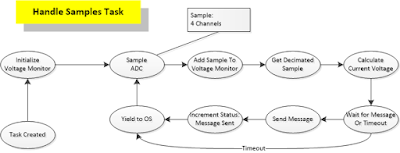
The second task, is the update LCD task. The diagram for this task is found below.
 As you can see from the diagram, this task simply waits until there is a message to update the LCD.
If there is a message available; it will be retrieved, the voltage will be calculated, then output buffers will be built and displayed. Again, like the handle samples task, if the message is not available, the task will yield to the operating system scheduler.
The final task, the idle task is very simple. This is a task I used mostly for debugging the system. However in the future, it could be used to gather real time data about the system if I add more features. For instance, I could add PC based control of the power supply via a UART. There would be a task added to handle the commands from the UART, I could add a command to retrieve the diagnostic data from the global status structure. Currently, the idle task tracks operating system errors, operating system event errors, operating system messages received and sent. The flow of the idle task can be seen in the diagram below.

You may have noticed common theme in the way the tasks behave, namely that they always yield to the operating system scheduler as soon as they can. This promotes a fast responsive application. The task flow knows the best possible way to give control back to the operating system, so it is best to do that when possible.
As I worked on this project, I used a logic analyzer to capture start up to full task scheduling in the application. You can see that screenshot below, if you want to see a video of me talking about the power supply and this upgrade please use this link to view the video.

Oversampling the ADC is how I decided to increase the accuracy and stability of the voltage measurement. I chose to use a new architecture, that utilizes a real time operating system. The first RTOS that came to mind for an 8-bit microchip processor was OSA RTOS. This is a wonderful, tiny RTOS that is meant to be used on very small processors, such as the PIC18F46K22 that is inserted into the READY for PIC board used in my power supply. I bought the board from MikroElectronika, just for this project. The below picture shows the power supply with the top open, you can see the READY for PIC board on the right near the back.

The firmware architecture is fairly simple, I used 3 tasks in conjunction with message passing.
The firmware entry point ( main ) sets up this architecture and then schedules all tasks, this can be seen below in the diagram.

The firmware first initializes the system, which consists of board support type operations such as LCD, ADC and Timer initialization routines. After this, the real time operating system is initialized, and the tasks are created. Once those steps are complete, we need to have the operating system enable all the interrupts, so that the scheduler can cycle between tasks. Finally, we enter into an infinite loop that will schedule time for each task in turn.
The first task, is also the most complicated one. The handle samples task, manages the ADC sampling, voltage monitor oversampling and decimation. This task actually samples 4 different ADC channels which all point to the same signal, this decreases the number of iterations
required to calculate the voltage value to display. The task makes use of a module called voltage monitor to handle the rolling over sample and decimation process. Once it has the decimated value, it checks to see if the message is available, and then sends the decimated sample if possible. In the event that there is a timeout while waiting for the message, the task will yield to the operating system scheduler. This can all be seen in the below diagram.

The second task, is the update LCD task. The diagram for this task is found below.

If there is a message available; it will be retrieved, the voltage will be calculated, then output buffers will be built and displayed. Again, like the handle samples task, if the message is not available, the task will yield to the operating system scheduler.
The final task, the idle task is very simple. This is a task I used mostly for debugging the system. However in the future, it could be used to gather real time data about the system if I add more features. For instance, I could add PC based control of the power supply via a UART. There would be a task added to handle the commands from the UART, I could add a command to retrieve the diagnostic data from the global status structure. Currently, the idle task tracks operating system errors, operating system event errors, operating system messages received and sent. The flow of the idle task can be seen in the diagram below.
You may have noticed common theme in the way the tasks behave, namely that they always yield to the operating system scheduler as soon as they can. This promotes a fast responsive application. The task flow knows the best possible way to give control back to the operating system, so it is best to do that when possible.
As I worked on this project, I used a logic analyzer to capture start up to full task scheduling in the application. You can see that screenshot below, if you want to see a video of me talking about the power supply and this upgrade please use this link to view the video.

Sunday, June 21, 2015
RioRand EP2C5T144 Altera Cyclone II FPGA Mini Dev Board
library IEEE;
use IEEE.STD_LOGIC_1164.ALL;
use IEEE.numeric_std.all;
entity TestProject is
Port (
Clk_In : in std_logic; -- Clock in from board (50 Mhz)
led_1 : out std_logic; -- Labeled D2 on board
led_2 : out std_logic; -- Labeled D4 on board
led_3 : out std_logic -- Labeled D5 on board
);
end TestProject;
architecture RealTimeLogic of TestProject is
constant slow_count : natural := 48000000;
constant fast_count : natural := 12000000;
signal Reset : std_logic;
begin
Reset <= '0'; -- Clear Reset.
alternating_led_sequence : process(Clk_In,Reset)
variable alternating_led_counter: natural range 0 to slow_count;
begin
if Reset = '1' then
alternating_led_counter := 0;
led_1 <= '1';
led_2 <= '1';
elsif rising_edge(Clk_In) then
-- Handle the Oscillating Led sequence.
if alternating_led_counter < slow_count/2 then
alternating_led_counter := alternating_led_counter + 1;
led_1 <= '1';
led_2 <= '0';
elsif alternating_led_counter < slow_count then
led_1 <= '0';
led_2 <= '1';
alternating_led_counter := alternating_led_counter + 1;
else
led_1 <= '1';
led_2 <= '0';
alternating_led_counter := 0;
end if;
end if;
end process alternating_led_sequence;
blinking_led_sequence : process(Clk_In,Reset)
variable blink_counter : natural range 0 to fast_count;
begin
if Reset = '1' then
blink_counter := 0;
led_3 <= '1';
elsif rising_edge(Clk_In) then
-- Handle the fast blinking Led Sequence
if blink_counter < fast_count/4 then
blink_counter := blink_counter + 1;
led_3 <= '1';
elsif blink_counter < fast_count then
led_3 <= '0';
blink_counter := blink_counter + 1;
else
led_3 <= '1';
blink_counter := 0;
end if;
end if;
end process blinking_led_sequence;
end RealTimeLogic;
Sunday, June 7, 2015
Linux Mint display resolution fix ( MAG 700P )
Don't you just hate it when you know that your LCD monitor can do some specific resolution, but Xorg doesn't want to have any parts of it?
I do as well! Here is a small fix that worked for me in relation to my MAG 700P LCD monitor.
First I found the correct mode line by running the following command:
cvt 1280 1024
This command will spit out the mode line for running a monitor at 1280 x 1024 @ 60 Hz:
# 1280x1024 59.89 Hz (CVT 1.31M4) hsync: 63.67 kHz; pclk: 109.00 MHz
Modeline "1280x1024_60.00" 109.00 1280 1368 1496 1712 1024 1027 1034 1063 -hsync +vsync
Now that I have the new mode line in hand, I can add it as a new mode to my current output device.
Test this information by running the following commands:
xrandr --newmode "1280x1024_60.00" 109.00 1280 1368 1496 1712 1024 1027 1034 1063 -hsync +vsync
xrandr --addmode VGA1 1280x1024_60.00
xrandr --output VGA1 --mode 1280x1024_60.00
If all of these commands are successful, then we should see the display switch to 1280x1024 mode.
These commands were successful for me, so I added them to a .xprofile file in my user directory.
** Note this only changes to 1280x1024 for my user **
Now, this doesn't matter as I am the only user of this computer.
Screenshot:

I do as well! Here is a small fix that worked for me in relation to my MAG 700P LCD monitor.
First I found the correct mode line by running the following command:
This command will spit out the mode line for running a monitor at 1280 x 1024 @ 60 Hz:
# 1280x1024 59.89 Hz (CVT 1.31M4) hsync: 63.67 kHz; pclk: 109.00 MHz
Modeline "1280x1024_60.00" 109.00 1280 1368 1496 1712 1024 1027 1034 1063 -hsync +vsync
Now that I have the new mode line in hand, I can add it as a new mode to my current output device.
Test this information by running the following commands:
xrandr --newmode "1280x1024_60.00" 109.00 1280 1368 1496 1712 1024 1027 1034 1063 -hsync +vsync
xrandr --addmode VGA1 1280x1024_60.00
xrandr --output VGA1 --mode 1280x1024_60.00
If all of these commands are successful, then we should see the display switch to 1280x1024 mode.
These commands were successful for me, so I added them to a .xprofile file in my user directory.
** Note this only changes to 1280x1024 for my user **
Now, this doesn't matter as I am the only user of this computer.
Screenshot:

Subscribe to:
Posts (Atom)